
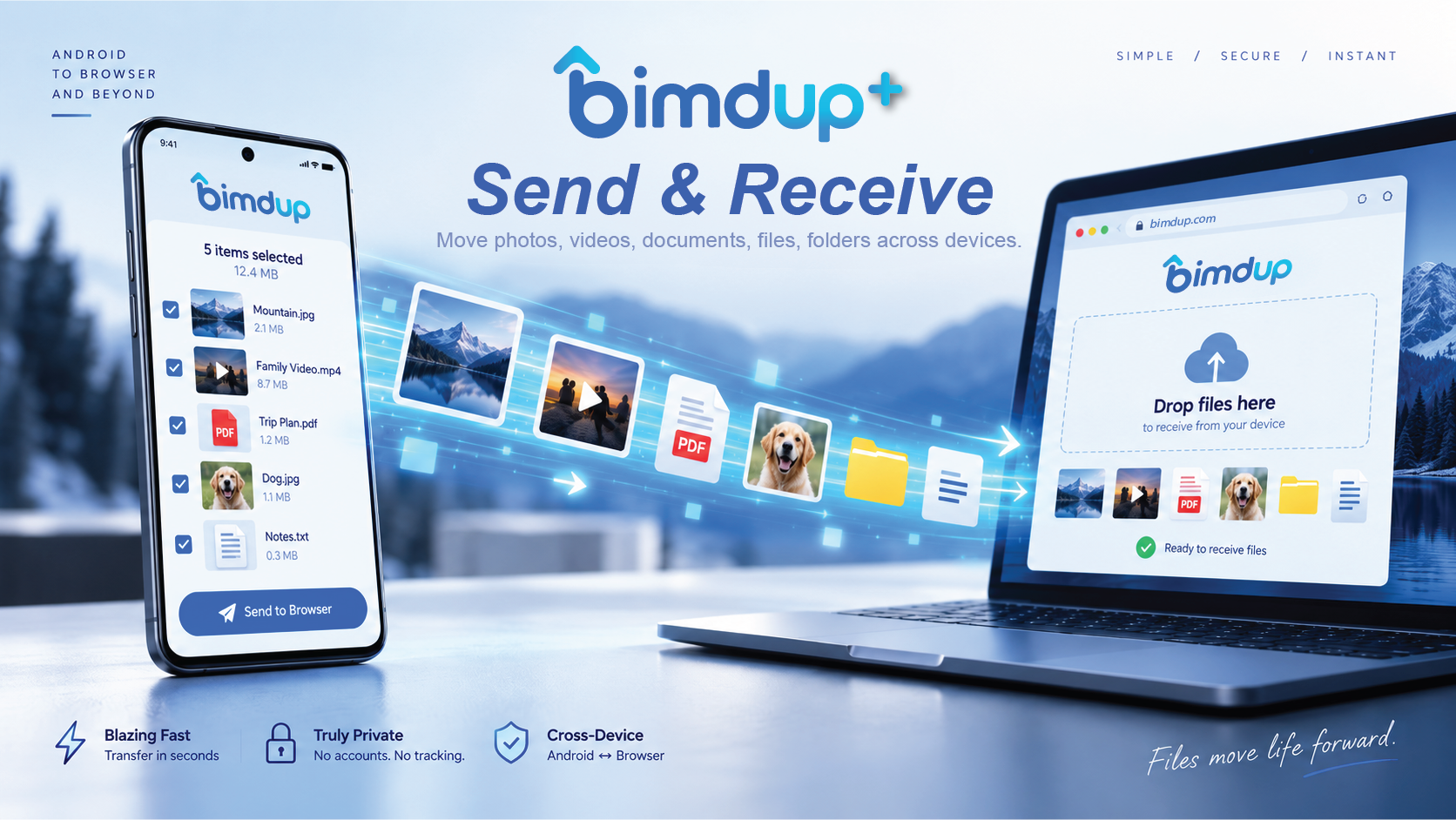
Pair an Android device with a computer browser
Pairing is the temporary introduction between devices. It tells BimdUP which Android device and browser session are allowed to establish the transfer connection.
How to use it
- On the computer, open bimdup.com/transfer. The browser creates a temporary pairing session and displays a six-digit code.
- Open BimdUP on Android and tap Pair device.
- Enter the six-digit browser code and choose Connect with code.
- Keep both devices available while BimdUP establishes the secure WebRTC connection.
- When the pairing screen says Devices connected, choose Continue. You can now send or receive without creating an account.
The two devices do not have to discover each other on the same local network. WebRTC tries a direct route and can use TURN relay fallback when the network prevents a reliable direct connection.
Send files from Android to a computer
Use the fast path for ordinary photos, videos, documents, archives, and other files. The app reads the selected content incrementally and sends it over the active data channel.
How to send photos and videos
- Connect the Android device to the computer browser.
- From BimdUP Home, tap Send.
- Choose Photos & videos.
- Select one or more items in Android's media picker.
- BimdUP prepares the selection and starts the normal send flow automatically.
- Watch the current filename, transferred bytes, percentage, and transfer speed. You can cancel while the transfer is active.
How to send any other file
- Open Send and choose Browse files.
- Select one or more files from Android's system document picker.
- The selected files enter the same direct-transfer path and begin once they are ready.
- When complete, the Send screen records the result under Sent files.
BimdUP does not first place the file into a permanent BimdUP cloud library and then create a download link. The connected recipient is part of the live transfer.
Receive files from a computer on Android
The receiver controls where incoming files are written. BimdUP uses Android's Storage Access Framework rather than requesting broad storage access.
- Pair or reconnect the Android device and computer.
- On Android, open Receive. If BimdUP does not yet have a destination, tap Choose folder and grant access to the folder you want to use.
- On the computer browser, choose or drag in the files you want to send.
- Keep the receiving flow armed. BimdUP shows the incoming list, current file, bytes received, percentage when the size is known, and transfer speed.
- After completion, tap Ready for another transfer to arm the receiver again.
Change the destination
On the Receive screen, use Change in the Save to card. You can also set a default save location from Settings.
If Android asks again
If the previously selected folder is no longer available or Android permission has changed, BimdUP returns to the system folder picker instead of silently writing somewhere else.
Use BimdUP from the computer browser
The computer side is web-based. There is no desktop account or desktop application required for the ordinary transfer workflow.
Send computer → Android
- Open the paired transfer page.
- Drag ordinary files into the browser drop area or use the file picker.
- Confirm the Android receiver is ready and has a destination.
- Follow progress on both devices.
Receive Android → computer
- Keep the connected browser page open.
- Choose files from the Android Send screen.
- The browser receives the incoming items through the live WebRTC session.
- Use the browser's normal download/storage behavior for ordinary flat files.
Ordinary file drag-and-drop is the flat-file path. Preserving a folder hierarchy is a separate BimdUP Plus workflow because the receiver must be able to recreate directories safely.
Transfer files Android-to-Android
BimdUP is not limited to phone-to-browser. Two Android devices can use the same pairing and transfer architecture for ordinary files.
- On the first Android device, open Pairing and choose Create code for another phone.
- Leave that device on the pairing screen while it shows the temporary code.
- On the second Android device, open Pairing, enter the code, and connect.
- Wait until both devices report that the connection is ready.
- Use Send on one device and Receive on the other, just as you would with a computer connection.
For BimdUP Plus users, mixed file-and-folder batches can also use Android-to-Android protocol support while preserving directory structure.
Trusted Devices: pair once, reconnect later
Trusted Devices replace repeated six-digit pairing with a saved relationship between devices you control. Free includes one trusted relationship; Plus lets you keep multiple trusted devices.
How to create a Trusted Device
- Complete a normal six-digit pairing and wait until the devices are connected.
- On Android, choose Trust this device.
- Approve the trust request on the other device when prompted. BimdUP finishes enrollment only when both sides participate.
- Give the trusted entry a useful name if needed, such as Home Laptop or Office PC.
- Later, select the trusted device from Home or use the trusted-device control in the browser to reconnect without entering another code.
Free allowance
Free can enroll one Trusted Device. If you already have one and try to add another, BimdUP presents the Plus upgrade path instead of deleting the relationship you already have.
Plus allowance
Plus unlocks multiple Trusted Devices so a phone can keep several regularly used computers or Android devices ready to reconnect.
Rename, forget, and recover stale entries
Trusted entries can be renamed locally and explicitly forgotten. Forgetting revokes the relationship; the other side will also discover that the relationship no longer exists and remove its stale local entry. If the browser's BimdUP IndexedDB/site data is cleared, that browser loses its trusted credential and must use normal six-digit pairing again. Private/incognito browser sessions are not a good place to create a durable trusted relationship.
If Plus expires while more than one trusted relationship already exists, BimdUP does not delete user data as a billing side effect. Existing relationships remain reconnectable; creating another relationship above the Free allowance is what stays gated.
Folder transfers with preserved structure
Plus can send complete directory trees instead of flattening everything into one list. BimdUP transfers the files individually while carrying safe relative-path metadata so the receiver can recreate the hierarchy.
Android: build a mixed file-and-folder batch
- Connect the receiving device.
- Open Send and choose Folders & mixed batch.
- Use Add files for ordinary top-level files and Add folder for each directory tree you want to include.
- Review the batch summary. BimdUP shows top-level items, expanded file count, directory count, and known total size.
- Tap Send batch. The receiver recreates the hierarchy under the chosen destination.
Browser folder workflows
The browser can stage folder/mixed batches too. Receiving a structured folder transfer in a browser requires directory-write capability so BimdUP can recreate folders safely; it does not silently flatten a structured transfer into ordinary browser Downloads.
Structure and empty folders
Android-originated transfers can preserve empty directories because Android's Storage Access Framework exposes directory entries. Browser folder inputs may not reliably enumerate completely empty folders.
Collision protection
BimdUP does not intentionally overwrite an existing destination file. Name collisions are handled safely, and malformed absolute or traversal-style paths are rejected instead of being written outside the chosen destination.
Folder transfer does not require BimdUP to create a ZIP archive or upload the folder to the application server first. The structure is part of the live transfer protocol.
Background Receiving
Background Receiving lets a trusted device reach your Android phone even when BimdUP is not already open in the foreground. It is designed for repeat transfers from devices you have explicitly trusted.
Set it up
- Activate BimdUP Plus and create at least one Trusted Device.
- Open Settings → Background receiving.
- Choose a mode: Ask before receiving, Receive automatically, or Off.
- If no persistent receive destination is saved yet, BimdUP asks you to choose a folder first.
- On Android versions that require notification permission, approve notifications when BimdUP requests it during setup.
- Your trusted sender can now initiate the supported background reconnect flow while the app is inactive.
Ask before receiving
BimdUP shows a notification with Accept or Decline before the trusted device sends files. Use this when you want background reachability but still want a decision each time.
Receive automatically
BimdUP can receive from trusted devices in the background and surface transfer progress without requiring you to open the app first.
Off
BimdUP does not accept transfers while it is inactive. Normal foreground pairing and transfers continue to work.
Your selected paid mode can remain remembered, but its effective behavior becomes Off until the entitlement is active again. That preserves your preference without granting the paid capability after expiry.
Default save location and transfer history
BimdUP remembers the Android destination you grant through the system folder picker so normal receive flows do not have to ask you where to save every time.
Set or change the destination
- Open Settings.
- Under Transfers, choose Default save location.
- Select the folder in Android's document picker.
- Return later and choose Change whenever you want a different destination.
Review recent activity
The Send screen keeps a Sent files pane and the Receive screen keeps a Received files pane. These make it easier to confirm what just happened without putting your transferred content into a BimdUP cloud library.
Appearance, sharing, feedback, and Plus settings
Settings keeps the non-transfer controls together and follows the same restrained BimdUP visual language in light and dark mode.
Theme
Choose System default, Light, or Dark. BimdUP web content opened inside its WebView can receive the resolved app theme so the webpage does not flash or render in the wrong appearance.
Invite family and friends
The invite card opens your messaging app with a ready-to-send BimdUP message and Google Play link. You remain in control of the recipient and whether the message is sent.
Manage BimdUP Plus
Open the BimdUP Plus card in Settings to see entitlement status and plans supplied by Google Play. Active subscribers can manage the subscription through Google Play. If you reinstall or move to another eligible device, Restore purchases asks BimdUP to refresh and verify the Play entitlement instead of buying a second subscription.
Understand BimdUP's privacy and network model
BimdUP is a live transfer tool, not a permanent cloud-drive library. That distinction explains both the privacy model and why transfers can still work across difficult networks.
File path
File contents move over encrypted WebRTC transport. When the network allows it, the peers use a direct route. When a direct route cannot be established reliably, BimdUP can use Cloudflare Realtime TURN to relay the encrypted traffic.
Control path
BimdUP's HTTPS service coordinates temporary pairing, authorization, signaling, trusted-device relationships, and relay configuration. It is not used as permanent storage for the files you transfer.
BimdUP does not require an ordinary transfer account, username, password, contact list, or recipient registration. Like any internet service it still processes limited operational and network information required to establish, protect, and troubleshoot connections. For the full disclosure, read the Privacy Policy and Security guide.
Troubleshooting common BimdUP situations
Most problems fall into one of four categories: the temporary session ended, the trusted credential is no longer present, the receive destination needs attention, or the network needs a fresh connection attempt.
The six-digit code does not connect
Check that the code is current and entered on the correct pairing screen. If the session has expired or the browser was refreshed into a new session, create/use the new code. Canceling a connection attempt clears the active attempt so you can start cleanly.
A Trusted Device no longer reconnects
If the other side explicitly forgot the relationship, BimdUP removes the stale entry and asks you to pair again. If browser site data or IndexedDB was cleared, the browser credential is gone by design; use six-digit pairing and trust the device again.
Background Receiving does not wake the phone
Confirm Plus is active, Background Receiving is not Off, the sender is a Trusted Device, a persistent save destination exists, and Android notification permission is available where required. If the build reports that the background wake service is unavailable, normal foreground transfers still work.
A structured folder cannot be received in my browser
Folder structure needs a browser environment that can grant directory write access. Use a supported regular browser window, choose a writable destination, or receive the folder on Android. BimdUP will not silently flatten a structured folder transfer into ordinary Downloads.
The transfer was interrupted
If BimdUP offers Try again or Reconnect, use the surfaced recovery action. If the peer is gone, reconnect the devices first. A new connection attempt is safer than repeatedly tapping Send while the other side is not ready.
The wrong Android folder is selected
Open Receive or Settings and choose Change/Default save location. BimdUP uses Android's system-granted folder access rather than guessing a new location.
What is reserved for the growing Plus workflow bundle?
The entitlement catalog already has room for Resume & Recovery, transfer queues, local repeat-send, and a measured Connection Assist allowance. These are the next Plus capability areas, not promises that every one is already available in the current production UI.
This distinction matters for a user manual: the live Plus features documented above are multiple Trusted Devices, folder transfers with preserved structure, and Background Receiving. As additional Plus capabilities ship, this guide should be updated alongside the feature gate and release.
No matching guide sections
Try another question or use fewer words.