
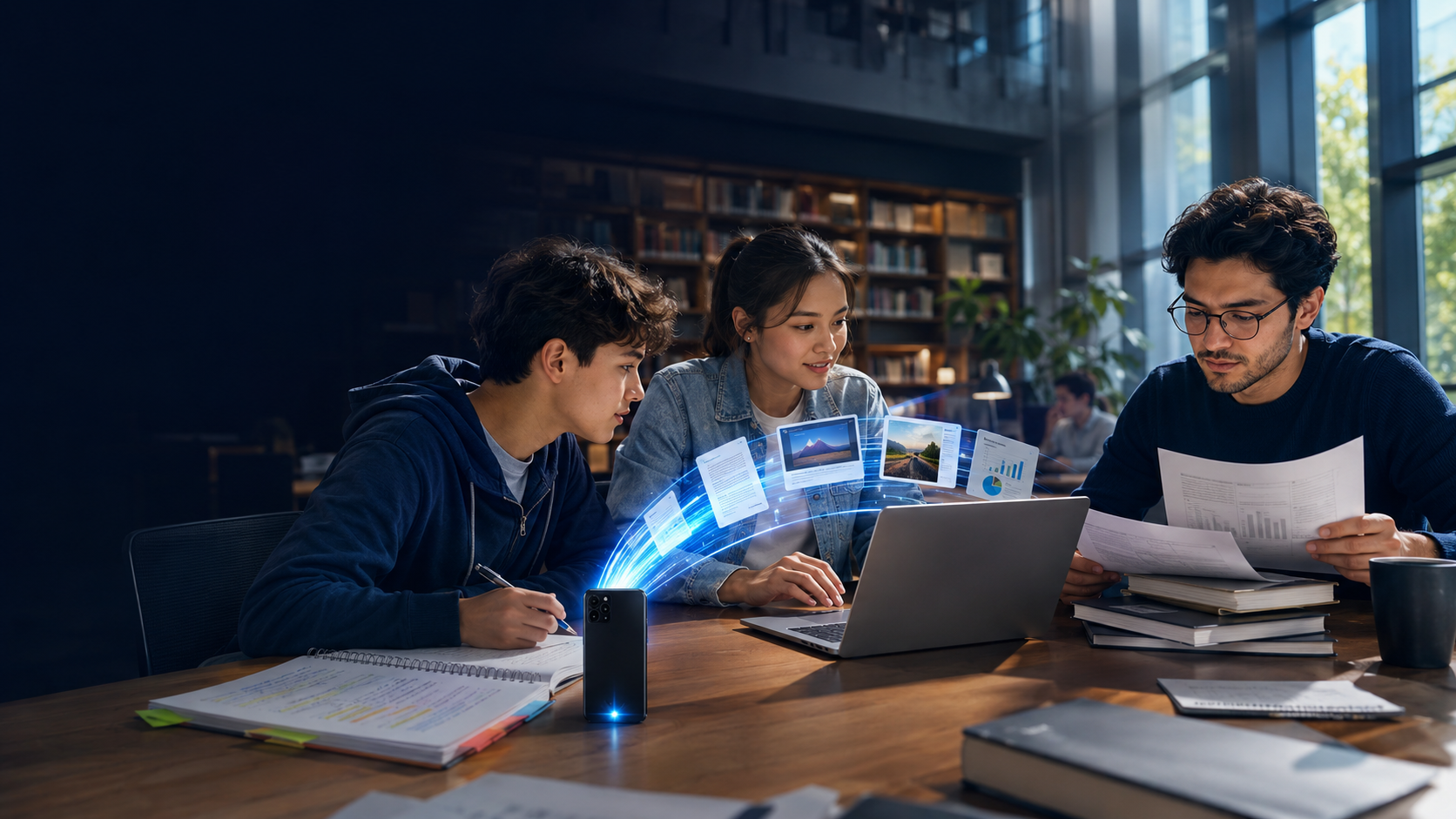
A finished assignment is sitting on your phone. The computer you need is across the table. This should be the easiest part of the night. Instead, you are searching for the right cable, waiting for a cloud upload, emailing the file to yourself, or discovering that the attachment is too large. Ten minutes later, the file still has not moved—and the submission deadline has.
Students live between devices. A phone captures whiteboards, lab setups, handwritten notes, interviews, field observations, reference photos, and video. A computer is where those pieces become reports, presentations, portfolios, spreadsheets, and final submissions. The space between the two devices looks small. In practice, it is where a surprising amount of academic friction accumulates.
This guide is about removing that friction. It explains what makes a file-transfer method useful for real student work, where familiar workarounds break down, how direct transfer fits into a responsible academic workflow, and how BimdUP helps Android users move files to and from a computer with a six-digit pairing code and a web browser.
The hidden cost of “just send me the file”
File transfer rarely appears on a syllabus, yet it sits inside almost every modern assignment. The problem is not only speed. It is the number of decisions and failure points between “the file exists” and “the file is where I need it.” Which account is signed in? Is there enough storage? Will campus Wi-Fi allow the connection? Did the app compress the image? Did you send the current version? Can the classroom computer open the service? Does the recipient need an account too?
Each question is small, but academic work is already crowded with small decisions. High-school students may be moving between a school-managed Chromebook, a family computer, and a personal phone. College students move between dorm rooms, libraries, computer labs, studios, and group-project meetings. Graduate students handle longer-lived projects, larger datasets, repeated drafts, conference materials, and files that should not casually spread across personal inboxes and third-party storage.
The best transfer method is not the one with the longest feature list. It is the one that asks the least of you while preserving the file you meant to move.
The transfer step should disappear into the work—not become a second assignment.
Three students, three versions of the same problem
Move a recorded science demonstration and worksheet photos from a phone to the home computer before the learning portal closes.
Bring reference images into a design project, then send the finished presentation back to the phone for class.
Move interview audio, annotated documents, field photos, or conference slides without creating another scattered cloud copy.
The academic level changes, but the underlying job remains the same: move the correct file between the devices already in front of you, confirm that it arrived, and continue working. That is the job a direct file-transfer tool should solve cleanly.
High school: deadlines and shared technology
High-school workflows are often constrained by devices and accounts the student does not fully control. A school laptop may block software installation. A parent may need the family computer. A student may have one school account, another personal account, and an assignment portal with its own login. Adding a new registration just to transfer a file creates needless complexity.
A browser-based receiving experience matters here. If the computer can open the BimdUP transfer page, the student does not need to install a desktop application. The Android app and browser connect using a temporary six-digit code. That is especially useful for photos of handwritten work, short project videos, downloaded study materials, and presentation files prepared on another device.
College: movement is the normal condition
College work happens everywhere: a lecture hall, library, studio, lab, café, dorm, or borrowed workstation. Students routinely capture something on a phone and need it on a laptop minutes later. Creative disciplines add high-resolution images, audio, and video. Technical courses add code archives, diagrams, and datasets. Group work adds more people, more devices, and more chances to use the wrong version.
The common response is to route everything through email or cloud storage. That may be appropriate when a file needs to remain available for days or be edited by several people. It is wasteful when the real task is simply “move this from here to there.” Direct transfer separates the act of moving a file from the act of storing or collaborating on it.
Graduate school: less clutter, clearer boundaries
Graduate work tends to accumulate. Research materials live longer, pass through more drafts, and may include interviews, unpublished writing, field documentation, or data governed by institutional rules. No general-purpose transfer tool can decide whether a file is appropriate to move; the student and institution must do that. Still, the transfer method can avoid creating unnecessary extra copies in an inbox or consumer cloud folder.
Direct transfer is useful for ordinary, permitted research materials because the service is acting as a connection path rather than a long-term file cabinet. If a project involves protected health information, personally identifiable research data, export-controlled material, or other restricted content, follow the institution’s approved systems and data-handling policy. Convenience is never a substitute for compliance.
Why familiar transfer workarounds fail at the worst time
Emailing the file to yourself
Email is excellent for communication and a poor universal transfer cable. Attachment limits appear quickly with videos, design exports, slide decks, and project archives. Large files may be converted into cloud links, which introduces permissions and expiration. Multiple self-addressed messages also bury the current file among earlier drafts with nearly identical names.
Email makes sense when the message itself provides context or creates a useful record. It is unnecessary overhead when sender and recipient are the same person sitting between two devices.
Uploading to cloud storage first
Cloud storage is valuable for backup, collaboration, and access over time. But those are different jobs from a one-time transfer. Uploading and downloading the same file consumes time and bandwidth twice. You may need to choose a folder, wait for synchronization, fix a sharing permission, or clean up the duplicate later. On a nearly full account, the workaround may not work at all.
The useful distinction is simple: use storage when you want persistence; use transfer when you want movement.
Messaging apps and social platforms
Messaging is tempting because it is already open. The tradeoff is that some services compress photos or video, rename files, limit attachment size, or intermingle school materials with personal conversations. A screenshot may survive. A portfolio image, print-ready graphic, or carefully encoded video may not arrive exactly as intended.
Cables, adapters, and removable drives
A physical connection can be fast and appropriate, especially for very large transfers or offline environments. It can also fail for mundane reasons: the cable only charges, the connector is wrong, the computer blocks the device, or the drive is at home. Public and shared computers add another concern because plugging in a personal device or removable drive may violate lab policy.
BimdUP does not make cables obsolete. It gives students a clean wireless option when a browser and network connection are available.
What “direct file transfer” actually means
Many tools described as file sharing are really upload-and-link services. The sender uploads a file to remote storage, the service creates a link, and the recipient downloads a separate copy later. That model is useful for asynchronous delivery: the sender and recipient do not have to be online together.
BimdUP is designed around a live connection. The Android app pairs with the browser using a temporary code, and both devices participate in the transfer session. When network conditions allow, the file moves peer to peer. The connection is encrypted in transit by the underlying real-time transport. If a direct route cannot be established, connection infrastructure may help the encrypted traffic reach its destination rather than turning BimdUP into a permanent cloud drive.
This design has practical consequences:
- Both devices need to stay available. Closing the app, browser tab, or network connection can interrupt a live transfer.
- Speed depends on the real connection. Wi-Fi quality, mobile data, network restrictions, device performance, and file size all matter.
- Transfer is not backup. After confirming the file arrived, students still need a responsible backup plan for important work.
- Pairing is temporary. A six-digit code helps connect the intended devices without requiring a BimdUP username and password.
That last point is more important than it sounds. Account creation carries a long tail: another password, another verification email, another privacy decision, and another credential to recover during finals week. BimdUP keeps the basic transfer flow focused on the task at hand.
How to transfer school files with BimdUP
The exact screen labels may evolve as the app improves, but the student workflow is intentionally short.
- Open BimdUP on the Android device. Choose whether the phone will send or receive files.
- Open the BimdUP transfer page on the computer. Use a current browser on the laptop or desktop that will participate in the transfer.
- Pair the devices. Enter the temporary six-digit code shown for the session. Verify that the devices report a successful connection before selecting sensitive or important material.
- Select the files. Choose the assignment, images, slides, audio, video, PDF, archive, or other permitted material you need to move.
- Keep both devices active until completion. Avoid changing networks, closing the browser, or putting the sending device into a state that stops the connection.
- Open and verify the result. Check that the file opens, looks complete, and matches the expected name and size before deleting the source or submitting anything.
Build a file workflow that survives a busy semester
A faster transfer tool solves only one part of the problem. The more durable advantage comes from pairing it with a disciplined file workflow.
Use names that identify the work
Names such as final.pdf, final2.pdf, and really-final.pdf are jokes until the wrong document reaches a professor. A useful filename answers three questions without opening the file: whose work is it, what is it, and which version is this?
A practical pattern is Course_Assignment_LastName_YYYY-MM-DD_v01.ext. For example: BIO210_Lab4_Rivera_2026-09-04_v03.pdf. If a portal specifies a naming format, follow that format instead.
Separate “working,” “submitted,” and “archive”
Keep active drafts in a working folder. When the assignment is ready, export the exact deliverable into a submitted folder and do not continue editing that copy. After the course ends, move the final materials into an archive. This makes a direct transfer safer because there is a single, identifiable file to select.
Verify formats before moving them
The destination computer may not have the same applications as the phone or personal laptop. Export final writing as PDF when formatting must remain fixed, unless the instructor requests an editable file. Package related project files into an archive only if the submission system accepts it. For presentations, check embedded fonts, audio, video, and external links on the destination device.
Keep the original until the outcome is confirmed
A progress indicator is not the same as an opened file. Confirm the transfer, open the destination copy, and inspect the important parts. For a research paper, check the first page, page count, citations, and final page. For media, play the beginning, middle, and end. For an archive, extract it and confirm the expected files are present.
Use direct transfer alongside backup—not instead of it
The phone-to-computer path is about movement. Backup is about recovery after loss, damage, deletion, or corruption. Important academic work should exist in more than one responsible location. That could mean an institution-approved cloud account, an encrypted external drive, a version-control repository for code, or another method appropriate to the course and data.
Privacy is a workflow, not a badge
Students deserve more than vague claims about privacy. The practical question is: where does the file need to exist, who can access it, and how long should it remain there?
A direct-transfer approach reduces one common source of exposure: creating a persistent third-party copy merely to bridge two nearby devices. It also avoids requiring a basic-transfer account. Those design choices can reduce the amount of personal information and file residue involved in an ordinary transfer.
They do not remove the student’s responsibilities. Before sending, check the destination device and the pairing session. Avoid moving private material to public computers. Sign out of school systems. Remove downloaded copies from shared machines. Follow course, employer, clinical-site, lab, institutional review board, and university information-security rules.
For group projects, agree on where the authoritative version lives. Direct transfer can hand a file to a teammate quickly, but it does not provide collaborative editing, change tracking, or automatic access revocation. Use the right tool for each job.
Where BimdUP fits especially well
BimdUP is most useful when the sender and receiving device are available at the same time and the goal is immediate movement rather than long-term sharing. Common student examples include:
- Moving whiteboard, textbook, or handwritten-note photos from Android to a computer for study guides.
- Transferring a presentation, PDF, or reference sheet from a computer back to the phone before class.
- Bringing project photos and short video clips into a portfolio or presentation.
- Moving downloaded readings to a larger screen for annotation or focused review.
- Transferring permitted fieldwork photos, audio notes, or research documents between personal devices.
- Handing a finished file to a nearby group member without collecting their email address or requiring a new account.
- Moving a large file that is awkward to attach to email, subject to the devices and network available.
It is less suitable when the recipient will download hours later, when many people need ongoing access, when the file must be collaboratively edited, or when institutional policy requires a specific managed platform. That honesty matters: a good tool becomes more useful when its boundaries are clear.
Student file-transfer questions, answered
Do I need to create a BimdUP account?
No account is required for the basic pairing and direct-transfer workflow. The temporary code connects the participating devices for the session.
Does the computer need the BimdUP app?
No desktop installation is required for the browser-based computer experience. Open the BimdUP transfer page in a supported current browser and pair it with the Android app.
Can BimdUP move large school files?
BimdUP is designed to move files directly rather than imposing an artificial attachment-size limit on peer-to-peer traffic. Real-world success still depends on available storage, device performance, network conditions, browser behavior, and how long both devices remain connected. For an exceptionally large file, test ahead of the deadline and keep a physical-transfer fallback available.
Is BimdUP a cloud-storage replacement?
No. It solves a different problem. BimdUP moves files between connected devices; cloud storage keeps files available over time and often supports synchronization or collaboration. Many students will sensibly use both.
Will the file lose quality?
A file-transfer workflow should move the selected file as a file rather than intentionally recompressing it like some social or messaging services do. Always verify the received result before deleting the source, especially with important images, audio, video, and archives.
Can I use BimdUP on school Wi-Fi?
Possibly, but managed networks can restrict real-time peer connections or certain browser capabilities. If a campus network blocks or degrades the connection, try another permitted network or use an institution-approved alternative. Do not attempt to bypass school network controls.
Can I send confidential research or clinical information?
Only if your institution has explicitly approved the tool and workflow for that data classification. For regulated, identifiable, clinical, or otherwise restricted material, use the approved institutional system. A technically encrypted connection does not by itself satisfy every legal, contractual, or research requirement.
The best student technology gives time back
Students do not need a dramatic new ritual for moving a file six feet. They need fewer steps, fewer accounts, fewer duplicate uploads, and a clear signal that the right file reached the right device.
BimdUP’s approach is deliberately focused: open the Android app, open the transfer page on the computer, pair with a six-digit code, and move the file. That simplicity is useful at every academic level. A high-school student can get project photos onto the family computer. A college student can move presentation media in the library. A graduate student can keep an ordinary transfer from becoming another abandoned cloud copy.
The larger lesson is not that every file should move directly. It is that students should choose tools by purpose. Store what needs to persist. Collaborate where changes need to be tracked. Use approved systems for protected information. And when the task is simply to move a file between devices, use a transfer tool designed to get out of the way.
Move the file. Keep your focus.
Use BimdUP to transfer files between your Android device and a computer browser—without creating an account or installing desktop software.
Open BimdUP TransferEditorial note: Product behavior can vary by device, browser, operating system, and network. If the article or hero asset is published at a different path, update the canonical, Open Graph, and structured-data URLs before deployment.